How I Replaced My Scheduling App with Claude, Todoist, and Google Calendar
2026-04-03 · 9 min read
I run multiple businesses, have two young kids, and cap my professional work at 20 hours per week. For months I tried every AI scheduling tool I could find — Reclaim.ai, Motion, Morgen, Clockwise, Trevor AI — and none of them stuck. They all wanted me to learn a new app, pay a new subscription, and trust an algorithm that couldn't understand my actual constraints.
So I built a system that uses tools I was already using: Todoist for tasks, Google Calendar for time blocks, and Claude as the conversational glue. No new UI. No subscription. Just a conversation with an AI that actually knows my schedule.
The core idea: a calendar shows you when things should happen, but it can't tell you what actually got done. If I run long on a task and have to rush out for school pickup, that calendar event just passes — silently. Todoist is the accountability layer. Every task stays on the list until it's checked off, so nothing falls through the cracks. The nightly review catches everything: what got done, what didn't, and what needs to move.
This post explains how the system works and how you can build something similar.
// why existing tools fell short
Auto-scheduling apps like Motion and Reclaim work on a simple premise: give us your tasks with deadlines, and we'll find time for them. The problem is that real life is full of constraints that don't fit in a form field:
- Protected blocks aren't just "busy" time. School drop-off, kids' bedtime, a partner's work schedule — these aren't meetings. They're immovable parts of your life that any scheduling system needs to understand.
- Work caps need enforcement — and flexibility. In an ideal world, I work Monday through Wednesday, 9 AM to 3 PM. In reality, I flex my time, and work tasks bleed into evening hours and off-days. I need a system that enforces the default but easily accommodates when things need to shift. No tool I tried could do both.
- Habits need special handling. A recurring "workout" task in Todoist only shows you the next occurrence. You can't plan a full week of habits without a separate system to create placeholder events.
- Context changes everything. When my partner works a late shift, I get an evening window. When a deadline moves, the whole week reshuffles. An algorithm can't ask me what to trade off — but a conversation can.
The tools weren't bad. They just couldn't model the kind of decisions that require judgment, not just optimization.
// the architecture
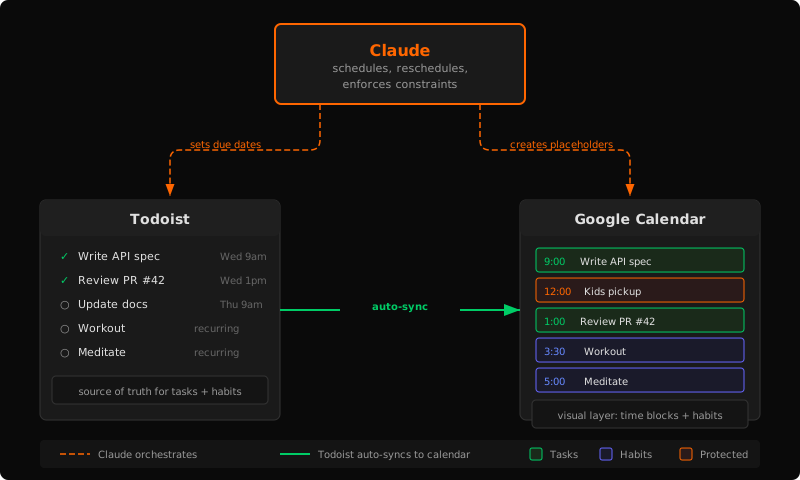
The system has three layers, and you already have two of them:
- Todoist — the accountability layer. Every task gets a deadline, a duration estimate, and a project. Tasks stay on the list until they're checked off — if I skip one or run out of time, it doesn't silently disappear like a calendar event would. Scheduling happens by setting a due date and time, which auto-syncs to Google Calendar via Todoist's built-in integration.
- Google Calendar — the visual layer. Static events (meetings, appointments, protected family blocks) live here. Habit placeholder events live here too. Todoist tasks show up automatically on a synced calendar.
- Claude — the brain. Claude reads from both systems, understands your constraints, and proposes a plan. You approve it (or negotiate), and Claude executes: scheduling tasks in Todoist, creating placeholder events in Google Calendar, and flagging deadline risks.
The key insight: let each tool do what it's best at. Todoist holds accountability. Google Calendar holds time. Claude holds judgment. No tool is replaced — they're connected.
// how scheduling works
I used to create calendar events for every task, which meant managing the same work in two places. Now, Todoist is the scheduler.
When Claude schedules a task, it sets the dueString to a specific date and time (e.g., "Mar 5 at 9am"). Todoist's Google Calendar sync instantly creates the event. If the task is rescheduled, the calendar updates automatically. If it's completed, the event disappears. One source of truth, zero dual management.
For batching, when three or more tasks from the same project land in the same time block, Claude creates a parent task as a container with subtasks as a checklist. This keeps the calendar clean while preserving granularity in Todoist.
Rules every task follows
- Every task has a deadline. No exceptions. This is what makes deadline-risk detection possible.
- Every task has a duration estimate. Without this, you can't calculate whether there's enough time left before the deadline.
- Every task has a project. Work projects consume the 20-hour budget. Personal projects don't.
// time windows and protected blocks
The system runs on explicit time boundaries. You define them once, and Claude enforces them in every planning session:
- Work window: The hours where professional work can be scheduled. Mine is Mon–Wed, 9 AM–3 PM.
- Personal window: Broader hours for habits, errands, and personal tasks. Mine is 9 AM–8 PM daily.
- Protected blocks: Time that is never scheduled over, period. School drop-off, kids' pickup, bedtime routine, weekly activities — these are immovable.
- Bonus windows: Conditional time that opens up based on circumstances. When my partner works a late shift, I get an 8:30–10:30 PM window for light work.
This is where the conversational approach shines. Claude doesn't just avoid scheduling over protected blocks — it understands why they exist. It can tell me "you have 14 hours of work available this week but 18 hours of tasks — what do you want to push?" instead of silently overflowing into evenings.
// habits
I used recurring tasks in Todoist to model habits (workout, meditate, clean the kitchen), but they have a fundamental limitation: you can only see the next occurrence. You can't see Thursday's workout until Tuesday's is checked off. This makes weekly planning impossible.
The solution is a placeholder system. Claude creates lightweight events on my primary Google Calendar (not the Todoist calendar) for the next two weeks of habits. These placeholders show when and where each habit should happen, giving a complete view of the week.
When planning time comes, Claude runs consolidation: it matches each Todoist habit task with its nearest placeholder, schedules the task for that time, and removes the placeholder. The placeholder did its job — it reserved the time — and now the real task takes over.
This is admittedly the most complex part of the system. If your habits are simple (same time every day), you might not need it. But if you have habits with different frequencies, preferred times, or dependencies between them (like laundry: wash, then dry an hour later, then fold), the placeholder system is worth the setup.
// the workflows
I've settled on five workflows that cover everything:
Plan My Week (Sunday or Monday)
Claude pulls your tasks for the week, calculates available hours in each time window, checks for deadline risks, and proposes a schedule. You approve or negotiate, then Claude executes — scheduling tasks in Todoist and refreshing habit placeholders.
Plan My Day (each morning)
A tighter version. Claude looks at today's events, consolidates any habits, and lays out a time-blocked schedule with buffer between tasks. It also surfaces any deadlines within the next seven days.
Daily Review (end of day)
What got done, what didn't, habit scorecard for the day, and a preview of tomorrow. Claude asks about any unplanned work time that should count toward the weekly cap, and suggests rescheduling for anything incomplete.
Weekly Review (end of week)
Work hours by project, tasks completed vs. planned, habit adherence rates, and patterns. This is where you catch drift: "you spent 8 hours on consulting and 2 on your product — is that the balance you want?"
Quick Capture (anytime)
Tell Claude about a task in natural language. It infers the project, estimates duration, asks for a deadline if one isn't obvious, and creates it in Todoist. No context switching, no opening the app.
// deadline risk detection
One of the most valuable features: Claude continuously checks whether you have enough available hours to finish each task before its deadline. Every task gets a status:
- On track — plenty of time remaining
- Tight — doable but no room for slippage
- At risk — not enough hours unless something moves
- Overdue — past the deadline
This surfaces problems before they happen. When Claude sees that you have 6 hours of work due Friday but only 4 hours of work window left, it raises the flag during Monday's planning instead of Friday morning.
// how to build your own
You don't need to replicate the full system. Start small and add complexity as you need it:
Step 1: Define your constraints
Write down your work window, personal window, and protected blocks. Be specific: "Mon–Fri, 8 AM–5 PM with 12–1 PM lunch" is a work window. "Never schedule during school pickup (2:45–3:30 PM)" is a protected block.
Step 2: Set up Todoist + Google Calendar sync
Enable Todoist's built-in Google Calendar integration. This gives you a read-only calendar of your Todoist tasks. When you set a due date and time on a task, it appears as a calendar event.
Step 3: Write a system prompt
Give Claude your constraints, your project list, and the rules. Start with the basics: time windows, protected blocks, "every task needs a deadline and duration estimate." You can add habits and reviews later.
I've published the full system prompt as a public gist with [CUSTOMIZE] sections you can adapt to your own schedule. Use it as a starting point or just steal the parts that make sense for you.
Step 4: Connect Claude to your tools
Claude needs MCP access to both Todoist and Google Calendar. Connect them through Claude's settings, or use an MCP proxy to keep the connections stable.
Step 5: Start with "Plan My Day"
Every morning, tell Claude "plan my day." It will pull your tasks and calendar, check for conflicts, and propose a schedule. Approve what looks good, adjust what doesn't. This single workflow delivers most of the value.
Iterate from there
Once daily planning is working, add a weekly review. Then add habits if you track them. The system grows with you because it's just a conversation — there's no migration, no settings pages, no feature gates.
// what I've learned after months of using this
- The 20-hour cap works because it's enforced. Before this system, I'd say "I only work 20 hours" and then quietly work 30. Having Claude track hours by project and flag overruns makes the cap real.
- Deadline risk detection changes your behavior. When you can see on Monday that Friday is going to be tight, you make different choices about how to spend Tuesday.
- Habits stick better with visual accountability. Seeing a two-week calendar of habit placeholders — and watching them consolidate into completed tasks — creates a feedback loop that a simple recurring task doesn't.
- Conversational planning is faster than any UI. "Move the API work to Wednesday afternoon and push the docs to next week" takes five seconds to say and handles all the downstream rescheduling.
- The nightly review is where it all pays off. I can either talk through the day with Claude or just pull up Todoist and scan the checklist. Either way, nothing slips. If I got pulled away from a task, it's still sitting there unchecked — and Claude will suggest when to reschedule it. A calendar alone can't do that.
- No new app means no adoption friction. I still open Todoist to check things off. I still glance at Google Calendar. The system lives in the tools I already use.
// the MCP connection problem
There's one real pain point: keeping Claude connected to Todoist and Google Calendar. MCP integrations use OAuth tokens that expire, and Claude's built-in token refresh doesn't handle every edge case. If you use this system daily, you'll hit auth failures.
This is actually why I built Bindify — it's an auth proxy that keeps MCP connections alive permanently. You authenticate once, get a stable URL, and Claude stays connected. If you're going to rely on these integrations for daily planning, a stable connection isn't optional.
You can also work around it by using API keys where services support them, or by re-authenticating when connections drop. It's friction, but the system still works.
One-week free trial. No credit card required.