How Claude + Notion Can Superpower Your Workflow
2026-03-14 · 4 min read
// what you can do
When Claude is connected to Notion, your entire knowledge base becomes conversational:
- "Search our Notion wiki for the onboarding checklist." — Claude finds the page and summarizes it for you.
- "Create a new page in the Engineering space with meeting notes from today." — Claude creates the page with the content you dictate.
- "What tasks are assigned to me in the Sprint Tracker database?" — Claude queries the database and returns your items.
- "Add a row to the Leads database with company name 'Acme' and status 'Qualified'." — Claude inserts the record without you opening Notion.
- "Summarize everything in the Q1 Planning page." — Claude reads the page and gives you a concise overview.
You stop tab-switching to Notion. You stop scrolling through nested pages. You just ask Claude and get your answer.
// the catch
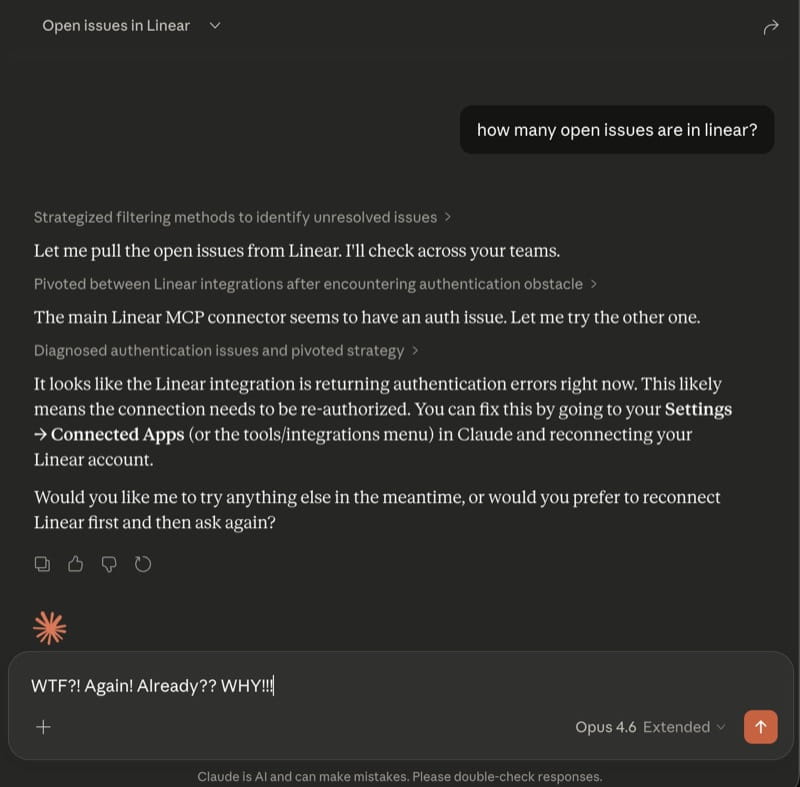
This screenshot is from Claude's Linear integration, but the same auth failures happen with every MCP connection — including Notion.
Notion's OAuth tokens expire frequently. When they do, Claude loses access to your workspace entirely. There is no API key fallback — OAuth is the only way in.
You have to open settings, disconnect the Notion connector, reconnect it, and re-authorize through Notion's OAuth flow. If you are on mobile, you have to switch to a browser first. Some users report needing to do this multiple times per week.
The workflow that was supposed to save you time starts costing you time.
// how Bindify fixes it
Bindify sits between Claude and Notion. You authenticate with Notion once through Bindify, and it handles token refresh automatically in the background.
Claude gets a permanent URL. No tokens to expire. No re-authentication. Your Notion connection works the same way on day 1 as it does on day 100.
// setup guide
Step 1: Create a Bindify account
Sign up at app.bindify.dev. Free 24-hour trial, no credit card.
Step 2: Connect Notion
Click "Add Connection" and select Notion. Authorize Bindify to access your workspace. This is the only time you will authenticate.
Step 3: Add to Claude
Copy your secret URL from the dashboard, then add it to your Claude client:
Claude.ai (Web)
- Click Settings (gear icon, bottom-left)
- Click Connectors
- Click Add custom connector
- Name it "Notion via Bindify"
- Paste your secret URL
Claude Desktop
Go to Settings > Connectors > Add custom connector and paste your secret URL.
Or edit the config file:
{
  "mcpServers": {
    "notion": {
      "url": "https://api.bindify.dev/s/{connection-id}/{secret}/sse"
    }
  }
}
Claude Code (CLI)
claude mcp add notion \
  --transport sse \
  "https://api.bindify.dev/s/{connection-id}/{secret}/sse"
Step 4: Done
Start a new conversation and ask Claude to search your Notion workspace. It will just work — permanently.
For the full walkthrough, see the Notion setup guide.
// you're not alone
Notion auth issues with Claude are widely reported:
Read more: Fix: Claude Notion Re-Auth Loop
Or see our overview: The Broken Promise of Claude MCP Tools
24-hour free trial. No credit card required.