How Claude + Todoist Can Superpower Your Workflow
2026-03-04 · 4 min read
// what you can do
When Claude is connected to Todoist, your task management becomes conversational:
- "Add 'buy groceries' to my inbox." — Claude creates the task instantly.
- "What's on my list for today?" — Claude checks your Todoist and gives you a summary.
- "Move the dentist appointment to next Tuesday." — Claude reschedules it without you opening the app.
- "Create a project called 'Home Renovation' with tasks for getting quotes, choosing a contractor, and setting a budget." — Claude builds the whole project structure.
- "Mark 'send invoice' as done." — Claude completes it for you.
It turns Claude into a personal assistant that actually acts on your to-do list instead of just talking about productivity.
// the catch
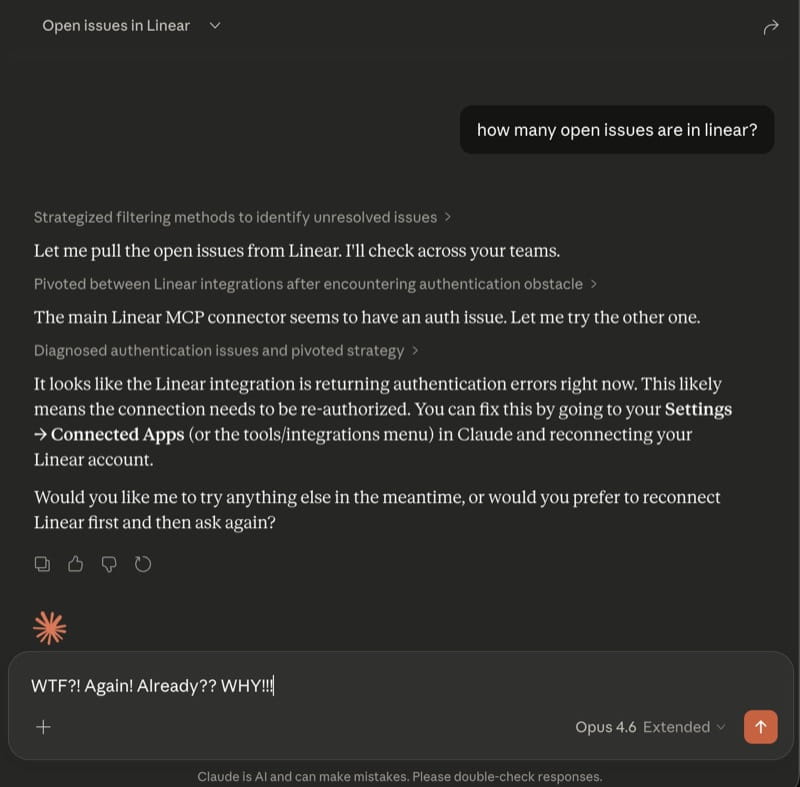
This is a real screenshot from Claude's Linear integration, but the same auth failures happen with every MCP connection — including Todoist.
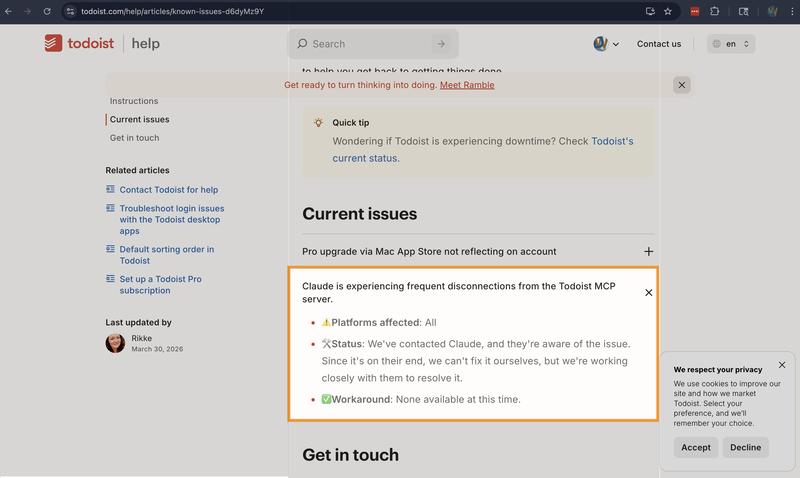
Source: Todoist Known Issues — frequent disconnections, all platforms, no workaround.
You set it up, it works great, and then it stops. Claude's MCP client tries to refresh the token, fails (Todoist doesn't issue refresh tokens), and discards your perfectly valid credentials.
The re-auth process is painful: open settings, find the connector, disconnect it, reconnect it, authorize again. If you are on your phone, you have to switch to a browser first. Some users report this happening every single day.
A tool that is supposed to save you time ends up costing you time.
// how Bindify fixes it
Bindify sits between Claude and Todoist. You authenticate with Todoist once through Bindify, and it maintains a reliable connection on your behalf.
Claude gets a permanent URL. No connection drops. No re-authentication. Your Todoist connection works the same way on day 1 as it does on day 100.
// setup guide
Step 1: Create a Bindify account
Sign up at app.bindify.dev. Free 5-day trial, no credit card.
Step 2: Connect Todoist
Click "Add Connection" and select Todoist. Authorize Bindify to access your account. This is the only time you will authenticate.
Step 3: Add to Claude
Copy your secret URL from the dashboard, then add it to your Claude client:
Claude.ai (Web)
- Click Settings (gear icon, bottom-left)
- Click Connectors
- Click Add custom connector
- Name it "Todoist via Bindify"
- Paste your secret URL
Claude Desktop
Go to Settings > Connectors > Add custom connector and paste your secret URL.
Or edit the config file:
{
  "mcpServers": {
    "todoist": {
      "url": "https://api.bindify.dev/s/{connection-id}/{secret}/sse"
    }
  }
}
Claude Code (CLI)
claude mcp add todoist \
  --transport sse \
  "https://api.bindify.dev/s/{connection-id}/{secret}/sse"
Step 4: Done
Start a conversation and ask Claude to add a task. It will just work — permanently.
// you're not alone
Todoist auth issues with Claude are widely reported:
- Persistent disconnection requiring daily re-auth
- OAuth token refresh disrupts autonomous workflows
- Feature request: Auto-reconnect for MCP servers
Read more: Fix: Claude Todoist MCP Token Expired
See also: The Broken Promise of Claude MCP Tools: Todoist, Linear & More
5-day free trial. No credit card required.