How to Connect Todoist to Claude
A step-by-step guide to setting up the Todoist MCP connector in Claude. Takes about two minutes.
// before you start
- Claude Pro or Max plan required. Custom MCP connectors are not available on the free plan. You need a Claude Pro or Max subscription to add custom connectors.
- Use Claude Desktop or Claude web (not mobile). The Claude mobile app cannot add new MCP connectors. However, once you set up the connection on desktop or web, it will be available on mobile too.
- You need a Todoist account. Any Todoist plan works, including free.
// why connect Claude to Todoist
Without the Todoist connector, Claude can talk about productivity but can't actually touch your task list. With it, conversations turn into action:
- Turn conversations into tasks. This might be the biggest one. You're discussing a project with Claude, brainstorming an approach, or debugging a problem — and at the end, Claude can create the follow-up tasks directly in Todoist. You go from "that was a useful chat" to having concrete next steps scheduled on your calendar. It closes the gap between thinking and doing.
- Bulk audits and cleanup. Coming back from vacation with 50 overdue tasks? Ask Claude to go through everything, push deadlines to realistic dates, and re-prioritize based on what matters now. What would take you 30 minutes of manual triage takes one sentence.
- AI-powered scheduling. Claude can read your tasks, understand deadlines and priorities, and help you plan your day or week. It can schedule tasks into time blocks, flag deadline risks, and reshuffle when things change. I built a full time management system on this exact capability.
// setup steps
Step 1: Open Customize
In Claude Desktop or on claude.ai, click Customize in the left sidebar.
Step 2: Go to Connectors
Click Connectors in the Customize panel.
Step 3: Add a custom connector
Click the + (plus) icon, then click Add custom connector.
Step 4: Paste the Todoist MCP URL
In the URL field, paste:
https://ai.todoist.net/mcp
Click Add to save the connector.
Step 5: Authenticate with Todoist
The connector will appear in your list, but it's not connected yet. Click on the connector to open it. This will launch Todoist's OAuth flow in your browser, where you authorize Claude to access your Todoist account.
Grant the permissions and you'll be redirected back to Claude. The connector should now show as connected.
Step 6: Test it
Start a new conversation and try something like "What tasks do I have due today?" or "Add a task to buy groceries." Claude should be able to read and write to your Todoist.
// using Todoist on Claude mobile
The Claude mobile app (iOS and Android) cannot add or configure MCP connectors. But once you've set up the Todoist connector on Claude Desktop or claude.ai in a browser, it will automatically be available on mobile.
If the connection breaks while you're on mobile, you'll need to switch to a browser to reconnect (see troubleshooting below). This is one of the main pain points with the native Todoist connector.
// when the connection breaks
This is the part nobody tells you upfront: the Todoist connection will break. It might last a day, it might last a week, but eventually Claude will tell you it can no longer access Todoist.
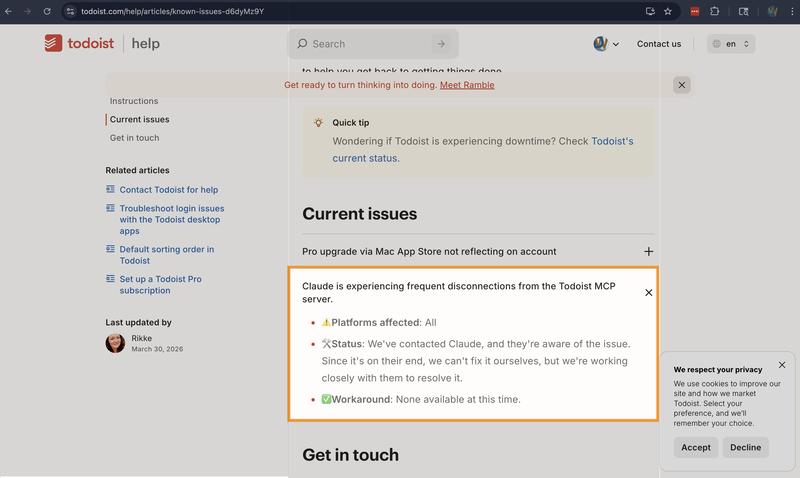
Source: Todoist Known Issues — frequent disconnections, all platforms, no workaround.
When this happens:
- Go to Customize > Connectors
- Find the Todoist connector
- Click Reconnect
- Re-authorize in your browser
This is quick if you're at your desktop. It's disruptive if you're mid-conversation, on your phone, or using Claude as part of a daily workflow where you depend on Todoist being there.
The underlying issue is that Todoist doesn't issue refresh tokens, so Claude's MCP client can't silently renew the connection. Once the token expires, manual re-auth is the only option. You can read more about why this happens across all MCP integrations in The Broken Promise of Claude MCP Tools.
// making the connection permanent with Bindify
If you rely on Claude + Todoist daily, the re-auth cycle gets old fast. Bindify is an MCP proxy that handles token management so the connection stays alive.
The setup process is almost identical to what you just did:
- Sign up at app.bindify.dev and connect Todoist (one-time OAuth)
- Copy your Bindify secret URL from the dashboard
- In Claude, go to Customize > Connectors > + > Add custom connector
- Paste the Bindify URL instead of the Todoist URL
That's it. Bindify maintains the Todoist connection on your behalf. No more reconnecting, no more mid-conversation interruptions, and it works across all your devices — including mobile.
Full setup guide: Connect Todoist to Claude via Bindify →
// troubleshooting
// related
- How Claude + Todoist Can Superpower Your Workflow — what you can do once connected
- How I Replaced My Scheduling App with Claude, Todoist, and Google Calendar — a full AI time management system built on this connection
- Connect Todoist via Bindify — permanent connection setup
- The Broken Promise of Claude MCP Tools — why MCP auth breaks